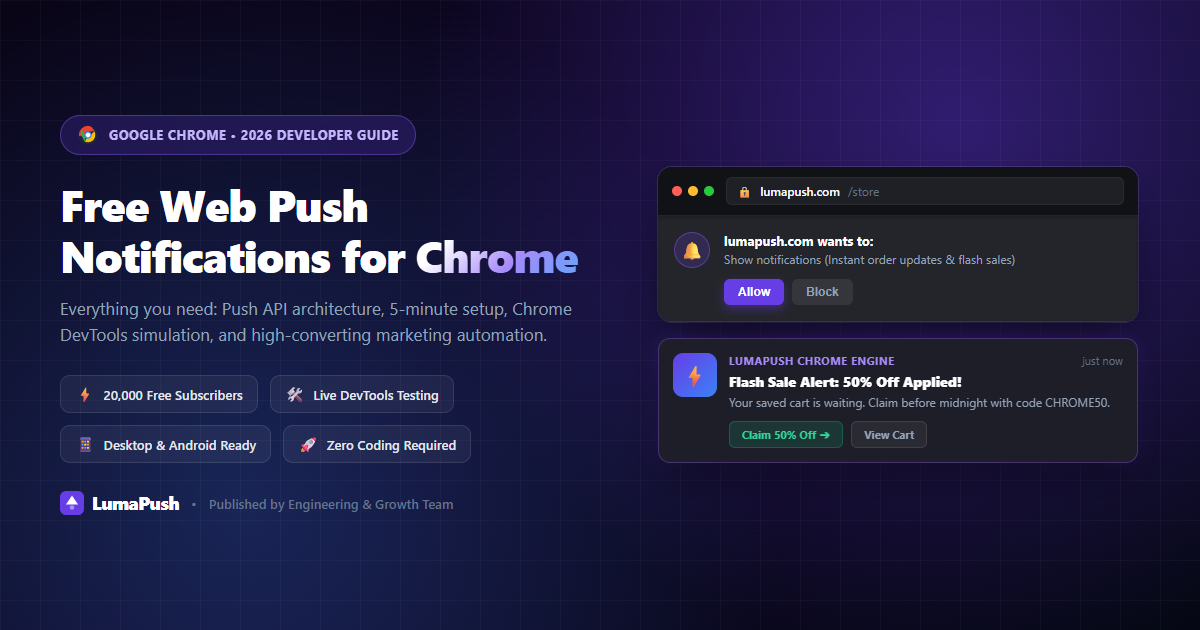
With over 65% global browser market share, Google Chrome is the most powerful communication channel on the internet. Web push notifications allow websites, e-commerce stores, and publishers to send clickable, instant alerts directly to users' Chrome browser windows—even when their website is completely closed.
Whether you want to drive repeat traffic, recover abandoned carts, or announce breaking news, setting up free web push notifications for Chrome is one of the highest-ROI marketing decisions you can make in 2026. In this comprehensive guide, we will break down how Chrome push notifications work under the hood, showcase high-converting examples, guide you through testing them, and show you how to set them up for free in less than 5 minutes.
What Are Chrome Web Push Notifications and How Do They Work?
Chrome web push notifications are rich, actionable messages delivered directly to a user's desktop or mobile device screen via the Google Chrome browser. Unlike traditional marketing emails that get trapped in spam folders or SMS messages that cost money per message, browser push notifications appear natively in the system notification tray (Windows Action Center, macOS Notification Center, or Android lock screen).
Behind the scenes, Chrome web push relies on three standardized modern web technologies:
- The Push API: Enables a web application to receive messages sent by a server, regardless of whether the user is actively browsing your site or has the tab open.
- The Notifications API: Gives web applications the ability to display system-level alerts and dialogs to the end user.
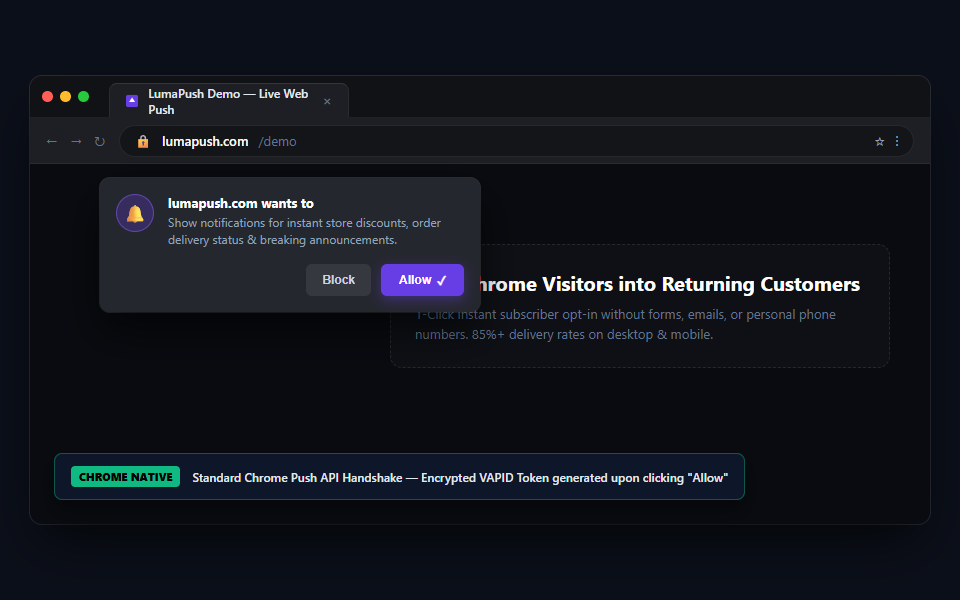
- Service Workers: An invisible, background script that Google Chrome installs when a user approves your opt-in prompt. The service worker listens for incoming encrypted messages from Google's Firebase Cloud Messaging (FCM) push service and displays the banner.
Unlike email or SMS signups, users do not need to share their phone numbers, email addresses, or names. With a single click on "Allow" in Chrome, they become a permanent subscriber, leading to 3x to 5x higher opt-in rates compared to email forms.
Why Chrome Push Notifications Deliver Highest Engagement
Marketing teams across industries are shifting ad budgets away from social feeds and crowded inboxes toward direct browser push. Here is what industry benchmarks reveal:
| Marketing Metric | Email Marketing | Chrome Web Push |
|---|---|---|
| Average Opt-In Rate | 1.5% - 3.2% | 8.5% - 19.4% |
| Delivery Speed | Minutes to Hours (Queues) | < 500 milliseconds (Instant) |
| Average Click-Through Rate (CTR) | 1.8% - 2.5% | 5.2% - 14.8% |
| Spam Filter Risk | High (Promotions / Spam tab) | 0% (Direct OS Notification) |
Real-World Web Push Notification Examples
To craft campaigns that generate clicks, studying real-world web push notifications examples across top industries is essential:
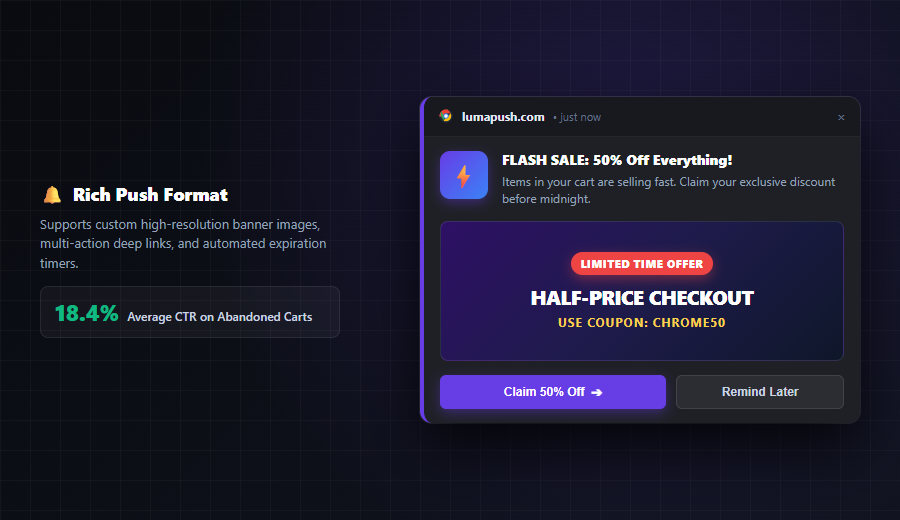
1. E-Commerce Flash Sale & Price Drop
Title: 🔥 Flash Sale: 40% Off Ends Tonight!
Body: The items in your wishlist are on sale for the next 4 hours. Tap to claim your discount before stock runs out.
Action Buttons: [Shop Deals] [View Wishlist]
Why it works: Urgency combined with action buttons gives the shopper a direct pathway straight back to checkout without navigating menus.
2. Automated Cart Recovery Alert
Title: Did you forget something, Alex?
Body: Your Organic Coffee Blend is waiting in your cart. Complete checkout now and get free 2-day shipping.
Action Buttons: [Complete Order] [Browse More]
Why it works: Delivered within 30 minutes of cart abandonment, automated Chrome push notifications recover over 25% of lost revenue at zero cost.
3. Publishers, Media & News Portals
Title: 🚨 Breaking: Tech Giant Announces Next-Gen AI Model
Body: Live coverage: How new benchmarks disrupt cloud computing and developer toolchains.
Action Buttons: [Read Analysis] [Share Article]
Why it works: News outlets depend on velocity. Sending a Chrome push alert within seconds of a story breaking guarantees immediate spikes in concurrent readers.
4. SaaS App Updates & Trial Expirations
Title: ⚡ Your 7-Day Free Trial Ends in 24 Hours
Body: Unlock unlimited campaigns and advanced analytics before your account downgrades.
Action Buttons: [Upgrade Now] [View Pricing]
Why it works: Keeps trial users engaged on their desktop workflow without relying on them opening their email.
Step-by-Step: How to Setup Free Web Push Notifications in Chrome
Setting up Chrome web push notifications for your website does not require writing complex service worker scripts from scratch. Here is how to get started using a modern free push platform like LumaPush:
- Create Your Account: Sign up for a free account at LumaPush. No credit card is required.
- Add Your Website Domain: Enter your site's URL (e.g.
https://yourwebsite.com) and upload your 192x192px brand logo icon. - Upload the Service Worker Files: Download the two lightweight service worker files (
sw.jsandmanifest.json) and place them in the root directory of your website. - Embed the 1-Line JavaScript SDK: Copy the single line of integration code and paste it right before the closing
</head>tag of your website:<script src="https://lumapush.com/sdk/v1/push.js" async></script> - Activate Custom Opt-in Prompts: Customize your opt-in banner style (Native, Flyout Slide, or Centered Modal) with a compelling call-to-action that explains why visitors should subscribe.
How to Test Web Push Notifications in Chrome (DevTools & Live Testing)
Before launching a live campaign to thousands of subscribers, testing your Chrome push setup ensures that icons, action buttons, and click URLs function properly.
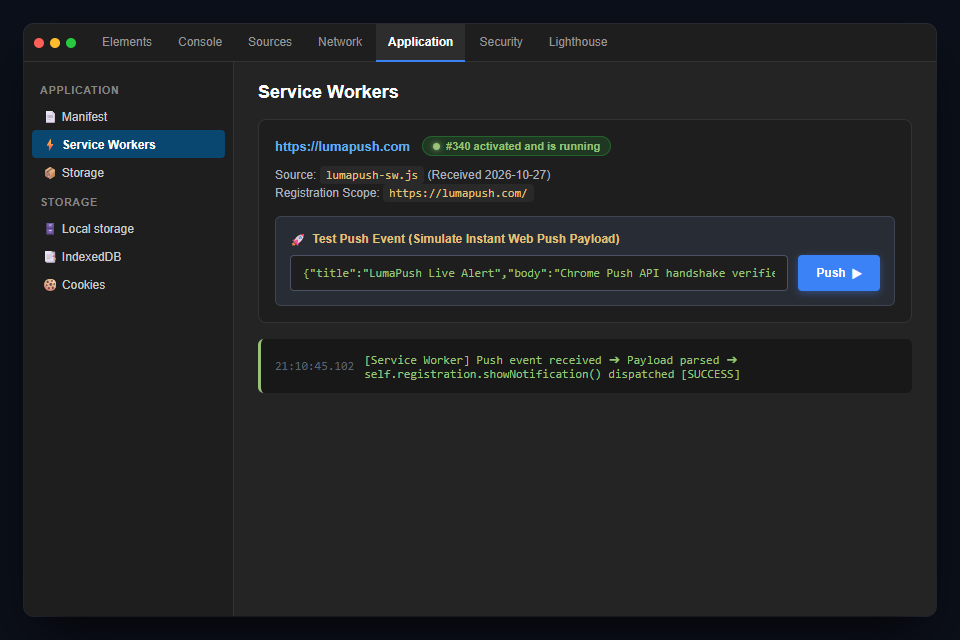
Method 1: Using Chrome DevTools Application Panel
Google Chrome comes with built-in push simulation tools designed for web developers:
- Open your website in Google Chrome.
- Press
F12(orCtrl + Shift + Ion Windows /Cmd + Option + Ion Mac) to open Chrome DevTools. - Navigate to the Application tab in the top navigation bar.
- In the left sidebar, click on Service Workers.
- Look for your active service worker status (it should show a green dot with #active and is running).
- In the input box labeled Push, enter test payload JSON (or leave blank) and click the Push button.
- Chrome will instantly trigger a test notification in your OS notification center!
Method 2: Sending a 1-Click Live Test Campaign
In your LumaPush dashboard:
- Subscribe to your own site in Chrome.
- Navigate to Campaigns > New Campaign.
- Enter your title, body text, high-resolution hero image, and destination link.
- Click "Send Test Notification to Me". You will receive the alert on your desktop within 1 second.
Chrome Settings Content Notifications Explained
One of the most frequent search queries by developers and users alike is chrome settings content notifications. What does it do?
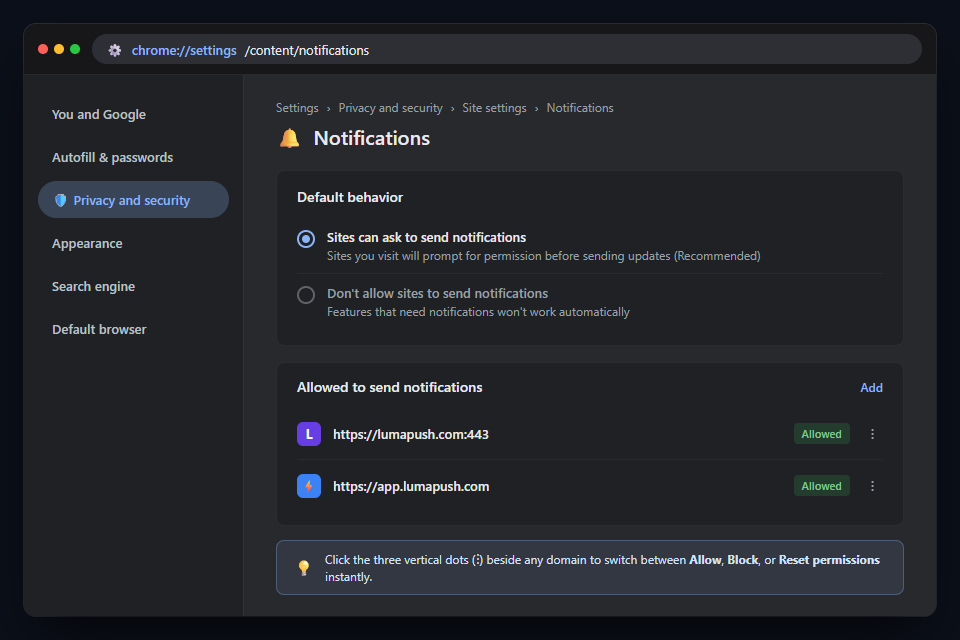
This is Google Chrome's native control panel for managing web push permissions across all websites you have ever visited. You can access it directly by pasting this internal URL into your Chrome address bar:
chrome://settings/content/notificationsInside this panel, Chrome offers three distinct global permission states:
- Sites can ask to send notifications (Recommended Default): Whenever you visit a new website that uses push notifications, Chrome shows the opt-in permission prompt.
- Use quieter messaging: Chrome automatically blocks intrusive prompts and displays a small muted bell icon in the address bar instead.
- Don't allow sites to send notifications: Completely disables notification prompts across all websites on the internet.
Beneath the global settings, you will find two lists: "Not allowed to send notifications" and "Allowed to send notifications". If you accidentally hit "Block" while testing your website, this is where you can find your domain, click the three dots, and choose "Allow" or "Reset permissions".
How Users Turn Off or Reset Chrome Notifications on Desktop & Android
If users ask how to unsubscribe or modify their browser notification settings, sharing straightforward instructions builds brand trust:
On Desktop (Windows, macOS, ChromeOS):
- Click the Tune / Lock icon on the far left of the Chrome address bar next to your site's URL.
- Find Notifications in the permissions menu.
- Toggle the switch from Allow to Block (or Reset permission).
On Android Smartphones:
- Open Google Chrome on your Android device.
- Tap the three vertical dots in the top right corner and select Settings.
- Scroll down and tap Site settings > Notifications.
- Under the Allowed section, tap on the website name and select Remove & reset (or toggle Notifications off).
Common Chrome Push Notification Errors & How to Fix Them
If your test push notifications are not showing up in Chrome, check these three common causes:
- Site is Missing an SSL Certificate (HTTPS): Google Chrome strictly enforces HTTPS for all Service Workers and Push API features. Web push will never work on unencrypted
http://domains (with the single exception ofhttp://localhostfor local development). - OS "Do Not Disturb" / Focus Assist Mode is Enabled: In Windows 11 and macOS Sequoia, Focus Assist or Do Not Disturb silences browser banners. If Chrome sends the push, Windows routes it silently into your Action Center without playing sound or popping up a banner.
- Notification Permission Blocked in System OS Settings: Check if Google Chrome has permission to deliver alerts in your OS settings (Windows Settings > System > Notifications > Google Chrome = ON; or macOS System Settings > Notifications > Google Chrome = Allow).
Why LumaPush is the Best Free Web Push Solution for Chrome
Most legacy push providers like OneSignal or Webpushr penalize growing websites with aggressive subscriber limits, monthly bills, or third-party data tracking. LumaPush is engineered specifically for creators, agencies, and high-traffic businesses:
- Generous Free Starter Tier: Support up to 20,000 push subscribers with unlimited push notifications at zero cost.
- High-Speed Delivery Queues: Deliver 100,000+ notifications in under 2 seconds across Chrome desktop and Android devices worldwide.
- AI-Powered Copywriting Studio: Automatically generate high-CTR notification titles, hooks, and emoji combinations tailored to your niche.
- Zero Subscriber Penalties: Unlike other services that freeze your account when your subscriber base grows, LumaPush offers transparent lifetime deals with unlimited push messages.
- Automated Drip Workflows & RSS-to-Push: Automatically send welcome notifications to new subscribers and blast breaking blog posts the second they are published.
Frequently Asked Questions (FAQ)
Are web push notifications in Google Chrome really 100% free?
Yes! Google Chrome uses standard Web Push APIs and Google's Firebase Cloud Messaging (FCM) backbones, which are free. Platforms like LumaPush provide a free starter tier that gives you the full dashboard, opt-in prompts, and subscriber management at zero cost.
Do Chrome push notifications work on Android and iOS?
Yes. On Android smartphones and tablets, Chrome push notifications deliver full rich banners with vibration and action buttons. On iOS (iPhones and iPads), Apple enabled web push starting in iOS 16.4 for websites added to the Home Screen.
How many subscribers can I collect on a free push plan?
With LumaPush, you can collect up to 20,000 subscribers on the free starter plan, and send unlimited push campaigns with zero monthly fees.
Can I send rich images and buttons in Chrome push notifications?
Yes. Google Chrome fully supports Rich Push Notifications on Windows, Android, and macOS. You can attach a large 360x240px banner image, custom brand icons, and up to 2 clickable action buttons to double your click-through rates.
Ready to Send Free Web Push Notifications in Chrome?
Set up LumaPush in under 3 minutes. Collect your first 1,000 subscribers today with zero credit card required.
Get Started for Free →